Advanced spaces list Cloud
support@digixperience.com

Admin Guide
1. Open the screen
Confluence administration → Settings → Advanced Spaces List.
2. A tour of the screen
When you open the screen, you see, from top to bottom:
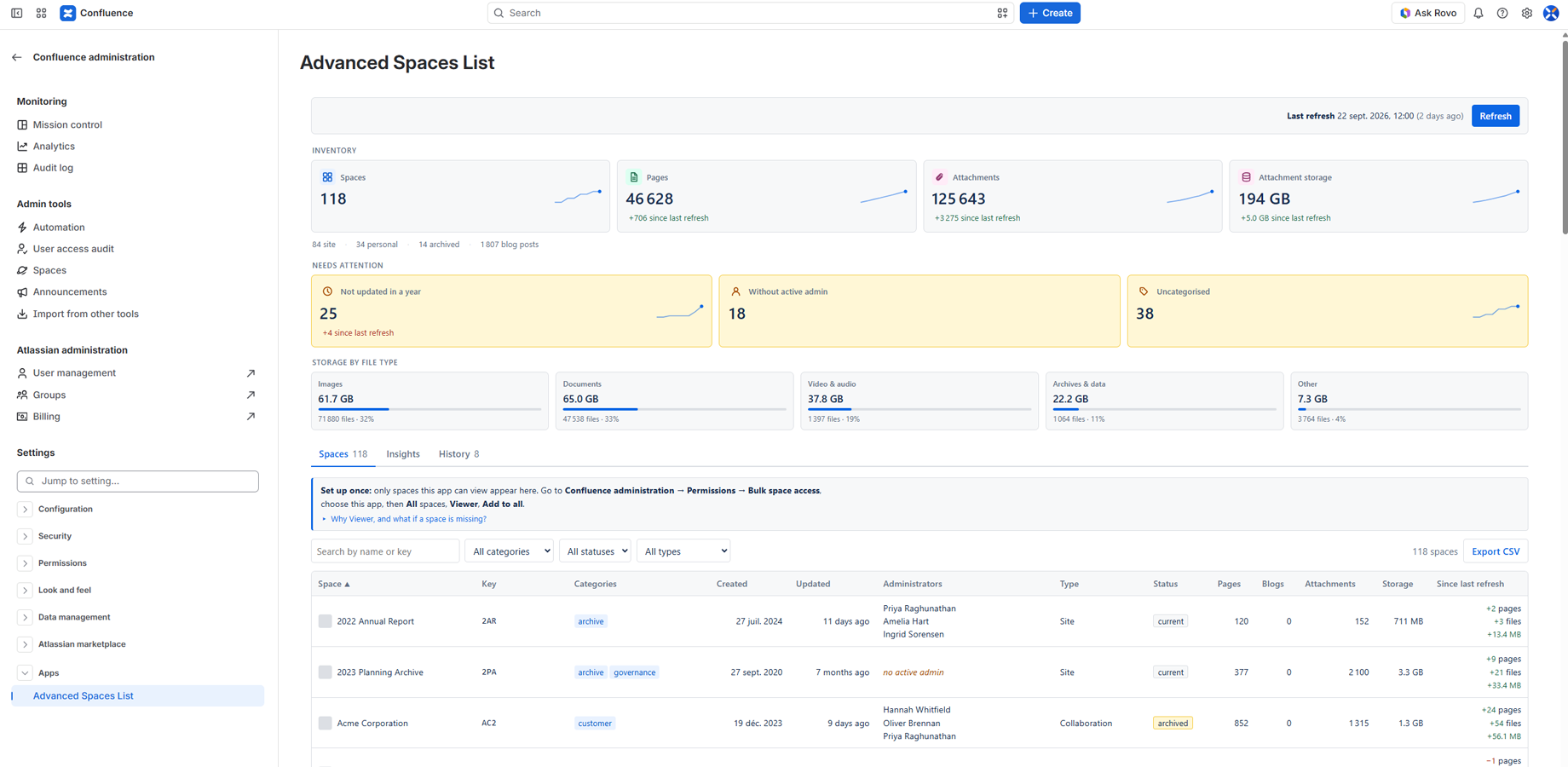
- The status bar: when the data was last refreshed, and the Refresh button.
- The tiles: site totals, and anything that needs your attention.
- Three tabs: Spaces (the list), Insights (charts) and History (trends over time).
The tiles stay the same whichever tab you choose, so the totals are always in view.
2.1. The tiles
The tiles come in three groups.
- Inventory shows what your site holds: Spaces, Pages, Attachments, Attachment storage.
- Needs attention shows the spaces worth a look: Not updated in a year, Without active admin, Uncategorised.
- Storage by file type shows how your storage splits between images, documents, video and audio, archives and data, and everything else.
After a few refreshes, each tile also shows the change since the last refresh and a small trend line.
Give the app access to every space
Do this First.
The app sees the spaces it has been given access to. A one-minute step makes sure it sees all of them.
Manage space access in bulk
- Go to Confluence administration → Permissions → Bulk space access.
- Choose Advanced Spaces List.
- Select All spaces and the Viewer role.
- Choose Add to all.
Note: new spaces. When someone creates a space with restricted access later, add Advanced Spaces List as a Viewer in that space's Space settings → Permissions, or simply run the bulk step again. If a space is missing from the list, this is almost always why.

2.2. Tab 1: Spaces
Your full list of spaces, one row per space. Search by name or key, filter by category, status and type, and sort by any column. All of this is instant, because the list is already loaded in your browser.
For each space you see:
- Space and Key: its name, icon and space key.
- Categories: its space categories.
- Created: when it was created.
- Updated: the most recent page or blog post edit. This is the last edit, not the last visit.
- Administrators: the people and groups who administer the space. Someone who has left is struck through, and no active admin means nobody is left.
- Type and Status: site or personal space, current or archived.
- Pages, Blogs and Attachments: how much content it holds.
- Storage: the size of its attachments, current versions only.
- Since last refresh: what changed in pages, files and storage. This column appears after the second refresh. Sort by it to find the spaces that are growing fastest.
The list shows fifty rows at a time; Show more adds fifty more.
Export CSV saves the rows you are looking at, with your filters applied. If your browser blocks the download, the app shows the CSV text for you to copy instead.
2.3. Tab 2: Insights
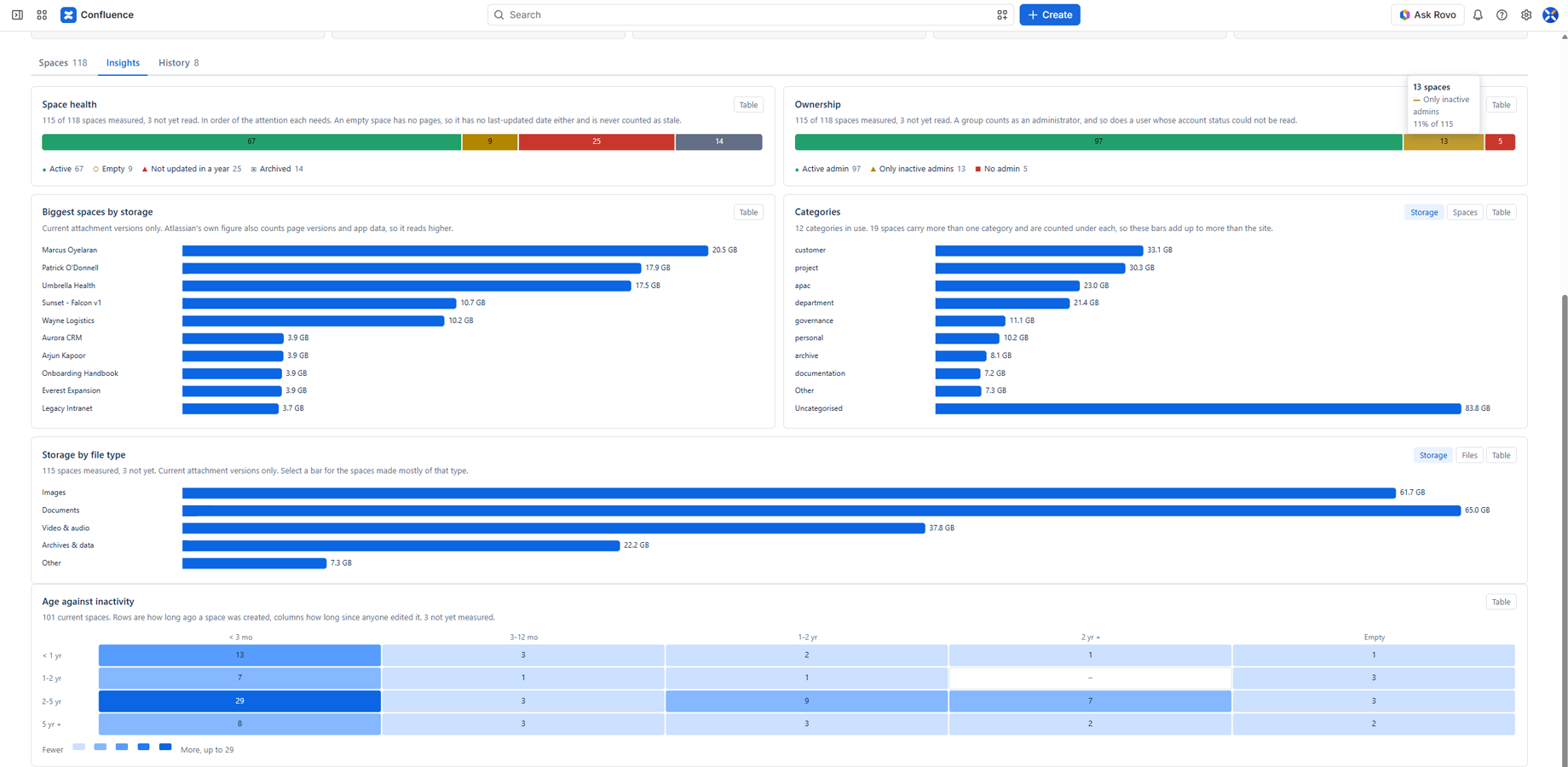
Six charts that give you the big picture. Click any bar, segment or cell and the Spaces tab opens with exactly those spaces.
The charts always cover the whole site, whatever filter you set on the Spaces tab, so they always agree with the tiles.
- Space health: active, empty, not updated in a year, and archived. A space with no pages counts as empty, not as stale.
- Ownership: spaces with an active admin, with only inactive admins, and with none.
- Biggest spaces by storage: your top ten.
- Categories: by storage or by number of spaces. A space with several categories is counted under each one, so the bars can add up to more than your total.
- Storage by file type: by size or by number of files. Try both: most files are usually images, but most storage is often video, and that is the one worth acting on.
- Age against inactivity: how old each space is against how long since anyone edited it. The bottom-right corner, old and untouched, is your clean-up shortlist.
Every chart has a table view with the exact numbers, and tells you how many spaces it could not measure.
2.4. Tab 3: History
How your site changes over time, kept for twelve months. Confluence's own space reports keep only seven days.
- Storage over time and Pages over time: one point per refresh.
- File types over time: storage per file type. This is how you spot "our video doubled this quarter" even when the total looks flat.
- Fastest changing spaces: the spaces that grew or shrank most since the last refresh.
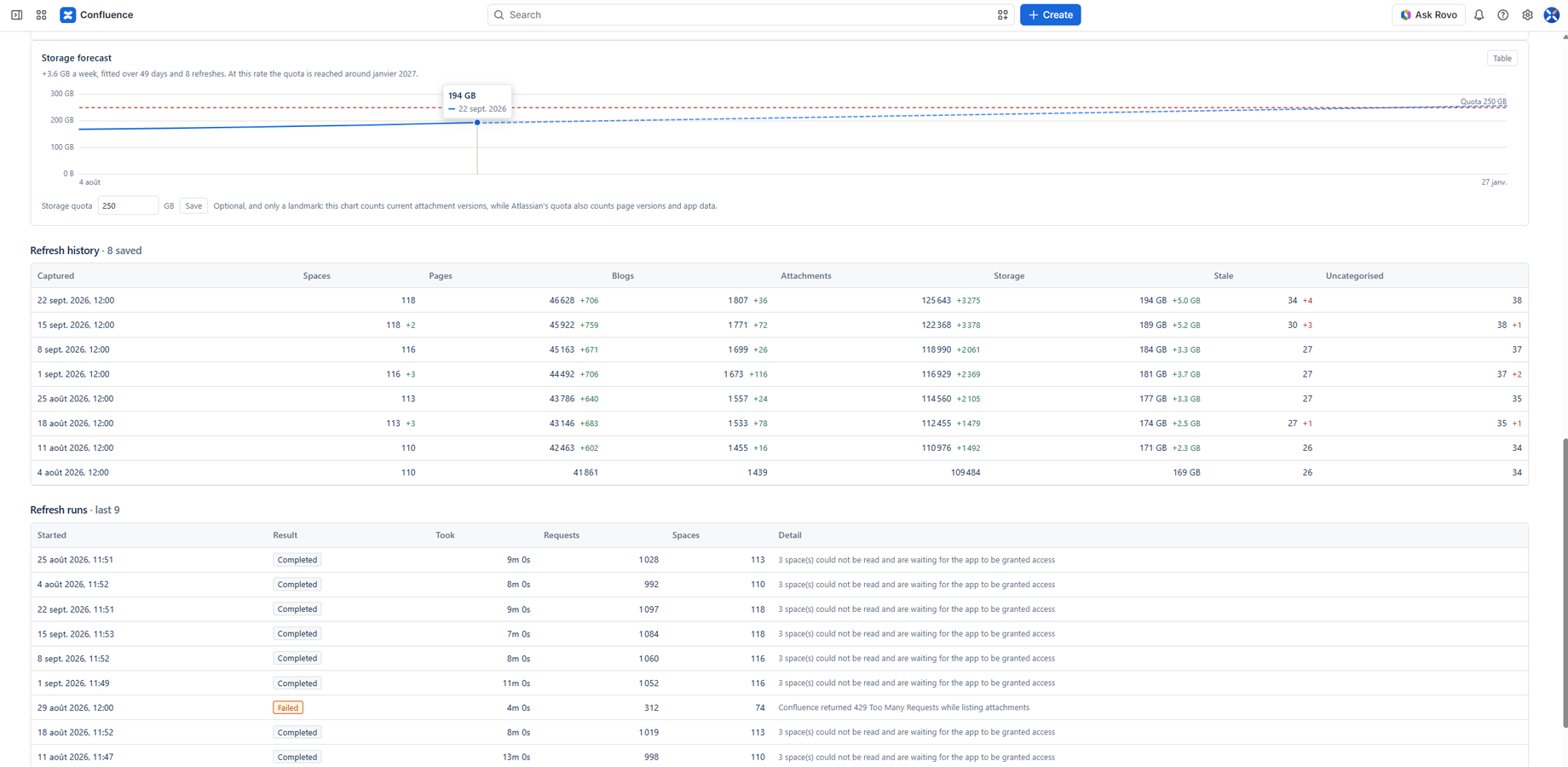
- Storage forecast: where your storage is heading. Enter your storage quota in GB and the chart shows roughly when you will reach it. Treat it as a guide: Atlassian's quota also counts page versions and app data, which this chart does not.
- Refresh history: a snapshot of your site at each refresh, with the changes.
- Refresh runs: how each refresh went, how long it took and, if one failed, why. Start here if a space never appeared.
Trends need at least two refreshes. Until then, the tab tells you how many it has so far.
Keyboard and screen readers
Every chart has a table view toggle that shows the same numbers as text. Chart bars and tiles are buttons: tab to one and press Enter to filter, exactly as clicking does. Tooltips appear on focus as well as on hover. Colour is never the only signal: statuses carry a word and an icon, and the heat map prints its count in each cell.
User guide
Three macros that help people find the right spaces, right from a Confluence page:
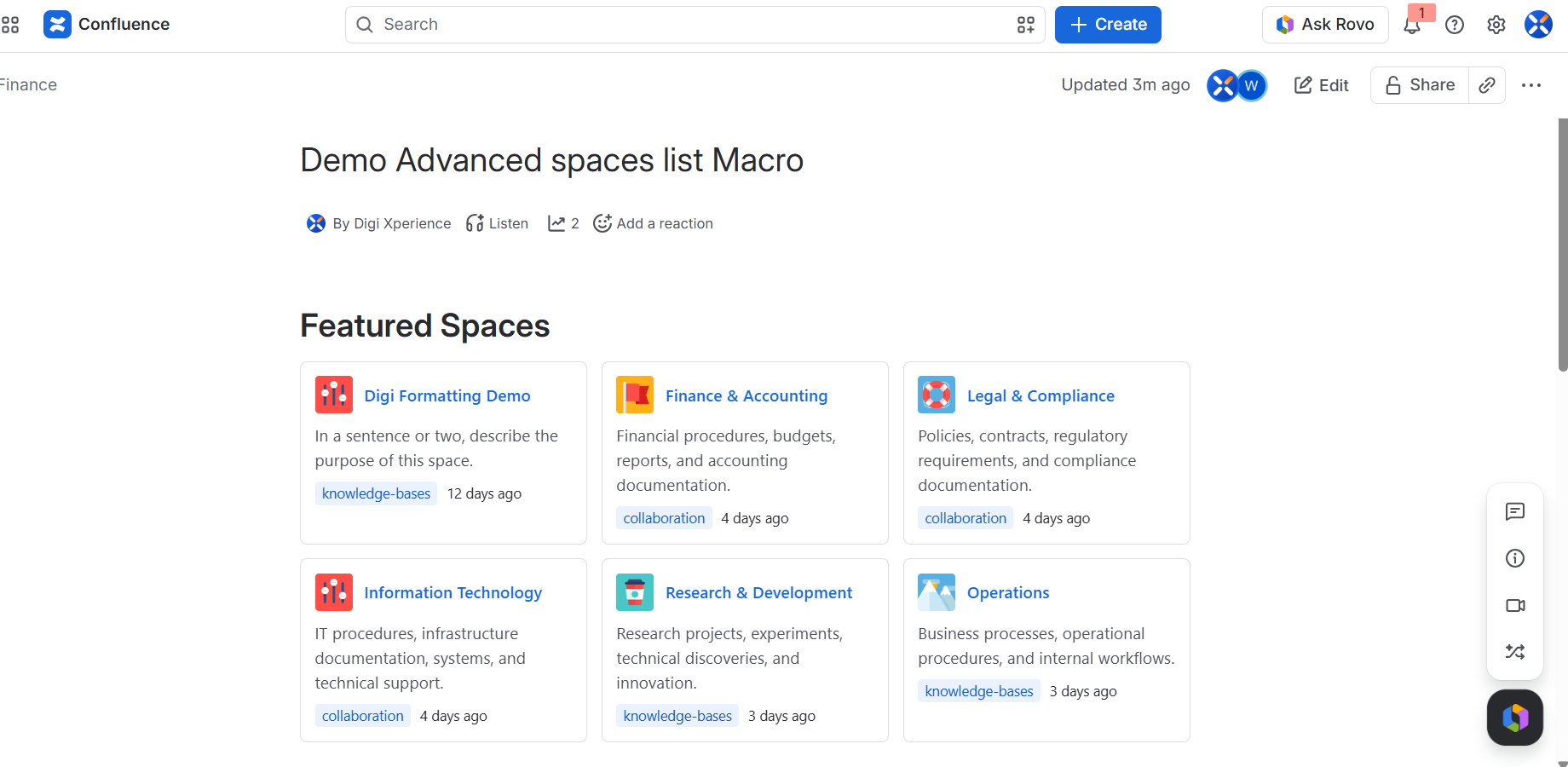
- Featured Spaces: up to 10 spaces you choose. Great for a team landing page.
- Spaces by Category: spaces grouped by category. It keeps itself up to date as spaces are categorised.
- Space Card: one space, with its owner and latest update. Great at the top of a space's home page.
A macro shows each reader only the spaces they can open in Confluence. So the same macro can show different spaces to different people, and may even look empty to a colleague. That is expected, and it keeps private spaces private.