Frequently Asked Questions FAQ
support@digixperience.com

User Guide
1. What do you want to do?
| I want to… | Read |
|---|---|
| Find an answer | 4. Find an answer |
| Add a question I know the answer to | 6. Add a question |
| Fix or update an answer | 7. Change or delete a question |
| Show questions on my Confluence page | 8. Put an FAQ on a page |
| Choose the questions of an FAQ | 9. For FAQ managers |
| See how my space's questions are used | 10. For space administrators |
| Understand why I can't see or do something | 12. Something's not right |
Administrator guide
Confluence administrators: categories, FAQs, FAQ managers and backups are in the administrator guide.


2. Four words to know
| What it is | Example | |
|---|---|---|
| Question | A question and its answer, kept in a Confluence space. Anyone who can read the space can read it. | How do I reset my password?, in the IT space |
| Category | The subject a question belongs to. Every question has exactly one, chosen from a single company-wide list that your Confluence administrator maintains. | How-to, Troubleshooting |
| Tag | Free words the author adds, for detail a category doesn't cover. | #vpn #laptop |
| FAQ | A titled set of questions, picked by hand and put in order. | New starters |
"FAQ" means three things in this app, and it helps to tell them apart:
- The FAQ pages: the app's own pages, where you browse every question.
- An FAQ: one hand-picked set of questions, such as New starters. These are in the FAQs tab.
- The FAQ macro: what you insert to show questions, or an FAQ, on any Confluence page.
3. Where to find it
| Where | What it shows |
|---|---|
| Apps → FAQ in Confluence's top bar | The company FAQ: every question from every space you can see |
| FAQ in a space's sidebar | That space's FAQ: the questions written in it |
| A Confluence page with the FAQ macro | Whatever the page's author chose: a space's questions, one category, or one FAQ |
| A link someone shared with you | That one question, on its own page |
Both FAQ pages have the same three tabs:
- All questions: every question, grouped by category.
- FAQs: the hand-picked sets, as cards. Open one to read its questions in order. ← All FAQs takes you back.
- Categories: every category, with how many questions it holds. Open one to see its questions.

4. Find an answer
- Open Apps → FAQ, or FAQ in a space's sidebar.
- Type in the search box. Press / to jump straight to it. The search covers questions, answers and tags, and matches as you type (licen already finds license). Accents are ignored, so difference also finds différence.
- Click a question to open its answer.
Not sure what to type? Browse instead.
- Category buttons under the search box show one category at a time. All shows every question again.
- All spaces (on the company FAQ) narrows the list to one space.
- Click a tag (
#vpn) or a category on an open answer to list every question that has it. Click the tag's × to clear it. - The FAQs tab: someone may already have gathered what you need, for example New starters.
Choose how questions are shown. Cards shows each question with its category and the start of its answer. List shows the questions one under another. Expand all opens every answer at once. This browser remembers your choice.
Tip: Confluence's own search does not list FAQ questions. Use the search box on the FAQ pages or in the FAQ macro.
5. When you've found it
Below each answer you see who added it and when it was last updated, plus:
| Button | What it does |
|---|---|
| Helpful? 👍 Yes / 👎 No | Tells the authors whether the answer helped you. Answers marked unhelpful are flagged for rewriting. |
| Copy link | Copies a link to the question's own page, ready to paste in Jira, Slack or an email |
| History | Lists every version of the answer, with who changed it and when |
| Edit | Appears if you can write in the question's space. See Change or delete a question |
6. Add a question
You can add questions in any space where you have the Add pages permission.
- Press New question at the top of an FAQ page. On a Confluence page, use Add question above the questions, if the page's author left that button on.
- Question: write it the way people would ask it, for example How do I reset my password?
- Answer: format it with the toolbar (bold, headings, lists, quotes, code, links). Paste or drop screenshots straight in, or use the picture buttons. An answer can hold up to 10 pictures, each up to 5 MB, in PNG, JPG, GIF or WebP.
- Space: you're asked for one only on the company FAQ. Choose with care, because everyone who can read that space can read the question.
- Category (required): pick one from your company's list. Only Confluence administrators can add categories.
- Tags (optional): type a word. Tags already in use are suggested.
- Press Publish. Question published appears in the corner, and the question is live straight away.
Tips for a good question
- Ask one thing per question. If it's really two questions, write two.
- Put the answer in the first sentence, then add the detail.
- Tag the words people actually search for, such as product names, tools and acronyms.
7. Change or delete a question
Edit it: open the question → Edit → make your changes → Update. Anyone who can add pages in the space can edit its questions.
Undo a change: open the question → History → choose a version to read it → Restore version N. The restored text becomes the newest version. Nothing is lost: the version it replaced stays in the history too.
Delete it: open the question → Edit → Delete (bottom left) → confirm. Only the person who wrote the question, or an administrator of its space, sees Delete. A deleted question is gone for everyone.

8. Put an FAQ on a page
Anyone who can edit a Confluence page can add the FAQ macro to it.
- In the page editor, type /FAQ and choose FAQ. Straight away it shows the questions of the page's space, which may be all you need.
- To change what it shows, click the macro, then its Edit (pencil) button.
- Pick your settings. The On the page preview on the right shows what readers will see. Press Save.
- Publish the page.
| Setting | Choices |
|---|---|
| What to show | Questions: From This space, All spaces or any other space you search for, in All categories or just one. Or An FAQ: pick one of the hand-picked sets |
| Layout | List (click a question to open it) · All open (every answer showing) · Cards |
| At most | All questions, or 5, 10, 20 or 50 |
| Show a search box | On or off |
| Show the Add question button | On or off. Only for Questions, and only people who can write in the space ever see it |
| Heading | An optional title above the questions |
Common set-ups
| You want… | Choose |
|---|---|
| A space's questions on its home page | Nothing: insert the macro and publish |
| One team's how-tos on the team's page | Questions · From: the team's space · Category: How-to |
| An onboarding FAQ on a welcome page | An FAQ, for example New starters · Layout: All open |
Each reader sees only the questions they're allowed to read, so the same page can show different questions to different people.
People who aren't signed in (anonymous visitors, guests, help-center customers) see the macro read-only, with search, categories, tags, answers and Helpful?. That works only if your Confluence administrator has opened the space to them.
9. For FAQ managers
Your Confluence administrator can name you an FAQ manager. If you are one, an FAQ's page shows you Manage questions and Insights. You choose which questions each FAQ holds, and in what order. The administrator keeps each FAQ's title, description, icon and colour.
Fill an FAQ
- FAQs tab → open the FAQ → Manage questions.
- Add questions lists the questions that aren't in this FAQ yet, most recent first. Narrow the list by words, space, category, tag or creator, and tick as many as you like (your ticks stay when you change the filters). Then press Add N questions.
- Use ↑ and ↓ to reorder, and Remove to take a question out.
- Press Save.
Questions in spaces you can't see stay in the FAQ untouched, after the ones you can see.
See how it's used. Press Insights on the FAQ's page to see its views, how often it was found helpful, the most-read questions and the ones marked unhelpful.
It also shows Searched for, not found: what people searched the company FAQ for without finding anything. Write the answer opens New question with that search filled in as the question. Once you publish it, the search leaves the list.
10. For space administrators
- Your space's FAQ page has an Insights tab that only you and the other space admins see. It shows the number of questions, views, % found helpful, questions by category, the most-read and unhelpful questions, and the searches made in your space that found nothing. Each search has a Write the answer button.
- You can delete any question in your space.

11. Who can do what
The app has no permissions of its own. It uses Confluence's.
| To… | You need |
|---|---|
| Read a question, wherever it appears (lists, search, FAQs, macros, counts) | View permission on its space, and no restriction on the question |
| Vote, copy a link, see the history | To be able to read the question |
| Add, edit or restore a question | Add pages in its space |
| Add pictures to an answer | Add attachments in its space |
| Delete a question | To have written it, or to be an admin of its space |
| Put the FAQ macro on a page | To be able to edit the page |
| Choose an FAQ's questions | To be an FAQ manager |
| Create categories and FAQs | To be a Confluence administrator |
12. Something's not right
| What you see | Why, and what to do |
|---|---|
| No New question button | You can't add pages in this space. Ask the space's administrator. |
| The category you need isn't in the list | Only Confluence administrators add categories. Pick the closest one, add a tag, and ask them. |
| No Delete button | Only the question's writer or a space admin can delete it. |
| No Manage questions on an FAQ | You aren't an FAQ manager. Your Confluence administrator names them. |
| This FAQ has no questions yet | Its FAQ managers haven't chosen them yet. |
| N questions are hidden because you do not have access | They're in spaces you can't read, or behind restrictions. |
| This answer could not be loaded | You may no longer have access to it, or it has just been deleted. Reload the page. |
| Confluence search doesn't find a question | That's expected. Use the FAQ's own search box. |
| A picture won't go in | It must be PNG, JPG, GIF or WebP, up to 5 MB, with at most 10 per answer. You also need Add attachments in the space. |
| FAQ is not licensed on this site | The app's subscription has lapsed. Tell your Confluence administrator. |
Administrator guide
For Confluence administrators. Everything here is in Confluence settings → Apps → FAQ (Frequently Asked Questions) (Settings below). Nothing has to be configured: a new installation starts with three categories and one FAQ, and people can write questions straight away.
1. How it is organised
| Concept | What it is | Who manages it |
|---|---|---|
| Question | A question and its answer, written in a space. Readers of the space can read it. | Anyone who can add pages in that space |
| Category | One company-wide list. Every question is filed under one. | You (Settings → Categories) |
| Tag | Free words on a question, for detail a category doesn't need | Authors |
| FAQ | A titled, ordered selection of questions from any spaces | You: name, description, look. FAQ managers: which questions, in what order |
| FAQ manager | Up to 10 people and/or Confluence groups, for the whole app | You (Settings → FAQs) |
Permissions are Confluence's own — no app permission scheme to maintain. The full table is in §10.
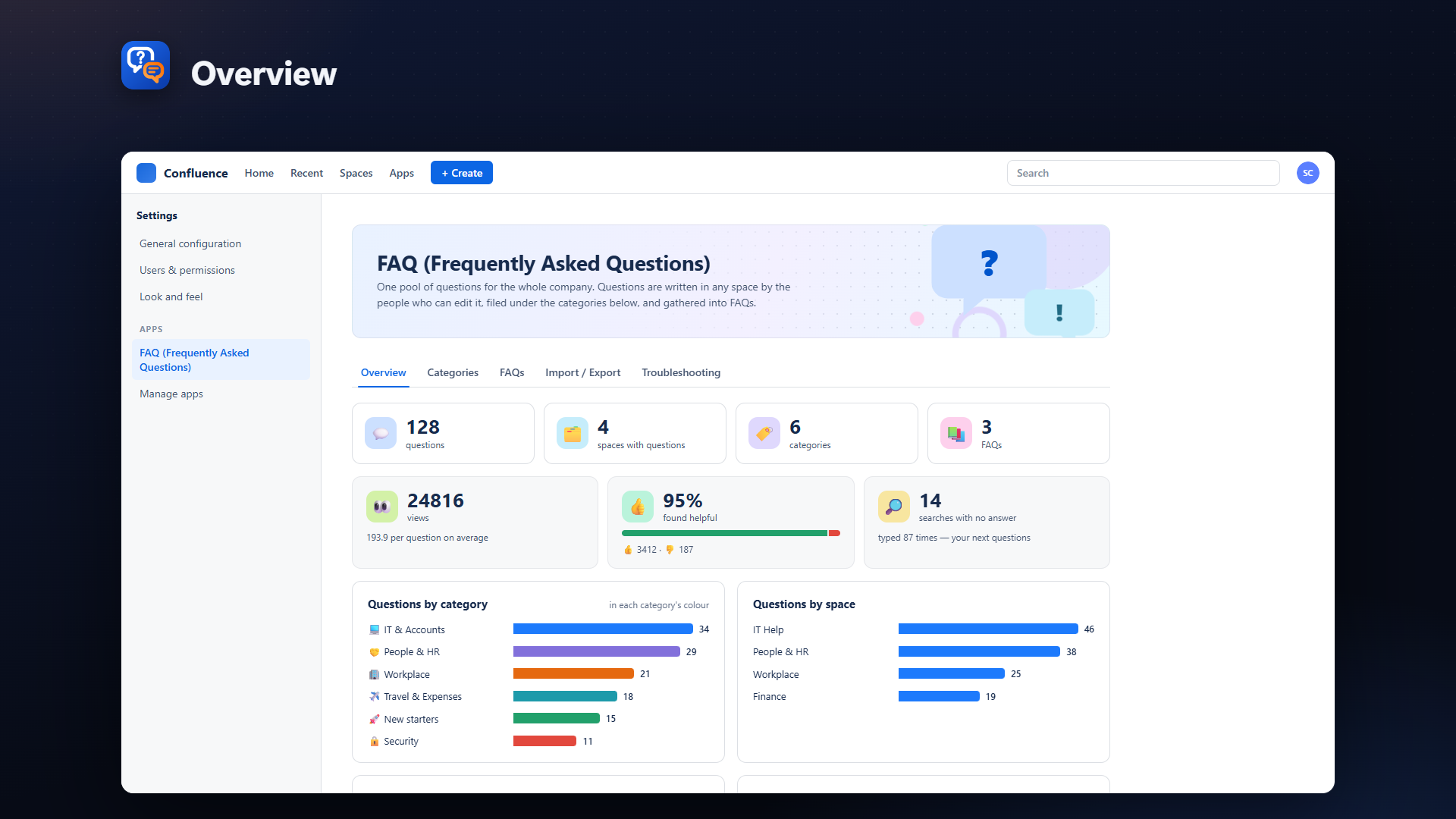
2. Overview
The state of the FAQ across every space you can see, computed when the tab opens:
- What it holds: questions, spaces with questions, categories, FAQs. A banner warns when questions have no category (from older versions).
- How it is used: total views (and the average per question), % found helpful with the 👍/👎 split, and how many searches found no answer.
- Questions by category (in each category's colour) and by space.
- Most read and Marked unhelpful — answers worth rewriting.
- Searched for, not found — for information. FAQ managers and space admins see the same list with a Write the answer button; here you can dismiss (×) noise.
3. Categories
Settings → Categories → New category, or click one to edit.
- Name, Description (optional), Icon (search ~1,900 icons by name — money, laptop, holiday — or browse by group), Background colour, Text colour. The Preview shows the badge readers will see.
- Renaming is always safe — questions keep their category.
- Deleting is possible only for a category no question uses, and never the last one (every question needs a category). Move its questions first, or rename it instead.
4. FAQs and FAQ managers
Settings → FAQs.
FAQ managers (top of the tab): type a name — people (👤) and groups (👥) appear together — add up to 10 in all, Save managers. Members of a listed group are managers too. Until you add someone, nobody can choose an FAQ's questions.
An FAQ: New FAQ, or click one → Title, Description, Icon, Colour → Save FAQ. Every FAQ appears on every FAQ page and can be shown on any page with the macro. The FAQ managers then choose its questions from the FAQ's own page (Manage questions). Delete removes the FAQ; its questions stay.
In a Jira Service Management help center: link a Confluence space to the service project as its knowledge base, create a page there and insert the FAQ macro — choose All spaces or an FAQ, and turn Add question off. The help center shows the page with the FAQ working in place: search, categories, questions opening with a click. Each reader still sees only the questions they can read in Confluence, so the questions' own spaces must be readable by the help center's readers.
Visitors who are not signed in (anonymous visitors, guests, help-center customers) see the FAQ macro read-only — search, categories, tags, answers, and Helpful? — with no other buttons. They see exactly the questions Confluence lets them read, so to make questions public, open them in Confluence:
- Confluence → Settings → Global permissions → Anonymous access → allow anonymous users to use Confluence.
- In the space that holds the questions (and the space of the page with the macro): Space settings → Permissions → Anonymous → View.
- For a help center: Jira → Settings → Products → Jira Service Management → Customer access → open to anyone; the project's Knowledge base → articles viewable by anyone.
⚠️ Everything in a space opened this way is public on the web — keep internal questions in another space. A question with a view restriction stays hidden. A public macro shows at most 100 questions, and a new or edited question can take 5 minutes to appear for visitors.
5. Import / Export
Settings → Import / Export.
- Export questions — every question you can read, or one space, as CSV (opens in Excel) or JSON (re-imports exactly). Pictures are not included.
- Import questions — a CSV or JSON file. Download a sample file gives one built from your own categories and spaces. The file is checked before anything is written (rows ready, unusable lines, unknown spaces, new categories — which you can create on the way). Questions are created as you, so you need Add pages in each target space. A question whose title already exists in its space is skipped. Download the report at the end.
6. Backup — and uninstalling
What survives an uninstall by itself: questions, answers, pictures, each question's category and tags (all Confluence content), and FAQ macros on pages.
What the app keeps a copy of: categories, FAQs, FAQ managers, views, votes and searches not found live in the app's storage, which an uninstall deletes. So the app keeps a backup in a Confluence space — written after every change, daily, and when you press Back up now — and restores it automatically on reinstall.
Settings → Troubleshooting → Backup:
- the green line shows what the backup holds, when it was saved, and which space it is in;
- Move to another space — an admins-only space is the safest home (the backup is a hidden item titled FAQ configuration (app data — do not delete));
- Export to a file / Import a file — your own copy of the configuration, and the way to copy categories and FAQs to another site.
Before uninstalling: press Back up now and check the line. After reinstalling, give the search a minute to rebuild; Run setup again shows what was restored.
7. Troubleshooting
| Symptom | Do this |
|---|---|
| Questions missing from lists or search | Rebuild the search index (runs in the background; the FAQ stays usable) |
| After a reinstall, categories or FAQs missing | Run setup again — it reports what it restored from the backup |
| "No readable backup" | Back up now; if it fails, the message names the reason |
| A question someone deleted is still listed | It disappears within the hour (a regular clean-up), or rebuild the index |
8. Insights for others
- Space administrators see an Insights tab on their space's FAQ page: that space's figures and its searches with no answer.
- FAQ managers see Insights on each FAQ: that FAQ's figures, and the company's searches with no answer, with Write the answer.
9. Licence and personal data
- Licence: if the subscription lapses, readers see a notice instead of the FAQ. Settings keeps working, so you can still export your questions and back up the configuration.
- Personal data: the app keeps no names, emails or pictures — only Atlassian account ids (who wrote a question, who manages FAQs). Every week it asks Atlassian which of those accounts were closed and erases them. A question whose author's account was closed simply shows no author.
10. Who can do what
| Action | Who |
|---|---|
| Read a question (anywhere: lists, search, FAQs, macros, counts) | View permission on its space (and not blocked by a restriction) |
| Write or edit a question; restore a version | Add pages in its space |
| Add pictures | Add attachments in its space |
| Delete a question | Its creator, or an admin of its space |
| Vote, copy link, view history | Readers of the question |
| Choose and order an FAQ's questions | FAQ managers |
| Space Insights | Admins of that space |
| Categories, FAQ details, FAQ managers, Overview, Import / Export, Backup, Troubleshooting | Confluence administrators (Settings) |
| Insert or configure the FAQ macro | Anyone who can edit the page; readers see only what they may read |
Every rule is checked on the server, for every request, from the person's own identity.